
|
|||||||||||||||||||||||||||||||||||||||||||||||||||||||||||||||||||||||||||||||||
|
|||||||||||||||||||||||||||||||||||||||||||||||||||||||||||||||||||||||||||||||||


| Features | PDFill PDF Editor | FREE Adobe Reader |
| View PDF | Yes | Yes |
| Fill Interactive Form Field | Yes | Yes |
| Print Form Field | Yes | Yes |
| Save PDF Form | Yes | Yes |
| Resume editing later | Yes | Yes |
| Email the edited PDF to some body else | Yes | Yes |
| Scan Image into PDF | Yes | No |
| Insert URL | Yes | No |
| Insert Whiteout to cover the original content | Yes | No |
| Edit the Font Style of a Form Field | Yes | No |
| Add Form Field if there is missing field | Yes | No |
| Move a Form Field | Yes | No |
| Delete Form Field | Yes | No |
| Flatten Form Fields | Yes | No |
| Adding Password to protect your filling | Yes | No |
| Set PDF Information or Initial View or Present Effect | Yes | No |
| Delete or Insert PDF Pages | Yes | No |
| PDF Ink (Pen, Marker and Highlighter) | Yes | No |
| Export or Import Form Data | Yes | No |
| Form Data AutoFill | Yes | No |
| Batch Commands | Yes | No |
The appearance may be different from that of Adobe Reader. But the filled values will be filled into the original PDF file.
Field Types of File attachment and Signature is not support this time. It will be supported in the future PDFill version.
2. How to fill out your form:
Selectfrom Format toolbar. If it is not selected, clicking it more will select it. Now, you are in selection state and can not insert new objects.
Position the pointer inside a form field, and then click it. The I-beam pointer allows you to type text. If your pointer appears as a pointing finger, you can select a check box or a radio button.
After entering text or making a selection, do one of the following to deselect the current field:
- Click another form field
- Click the area that has no field
- Press Escape to accept the form field change
Use TAB to select next object or SHIFT+TAB to select previous object.
3. Edit Current Form Field or Entire Form Fields
From Edit Menu, select Make Original Form Field Editable, there are two options:
Make Current Original Form Field Editable Make current original text form field editable to have a new font name, size, style, and color. Press "F4" to see its properties. Make Entire Original Fields Editable Make entire original fields editable to have a new font name, size, style, and color.
4. Delete Current Form Field or Entire Form Fields
Delete Current Object Delete the current selected PDF Form object.
PDF form field from the original form can be deleted. There are other ways: Move the cursor to the shadow area and then click the right mouse button, select "Delete Current Object" from the pop up menu; Press Ctrl + D to delete the current object. Press key "Delete".Delete all Original Form Fields Delete the Original interactive Form so that you can type onto the PDF page just as you use the typewriter.
5. Exporting and importing form data
It is FREE to Export the form data into a Text or Excel file.
You can ask your client to export the form data and email to you!
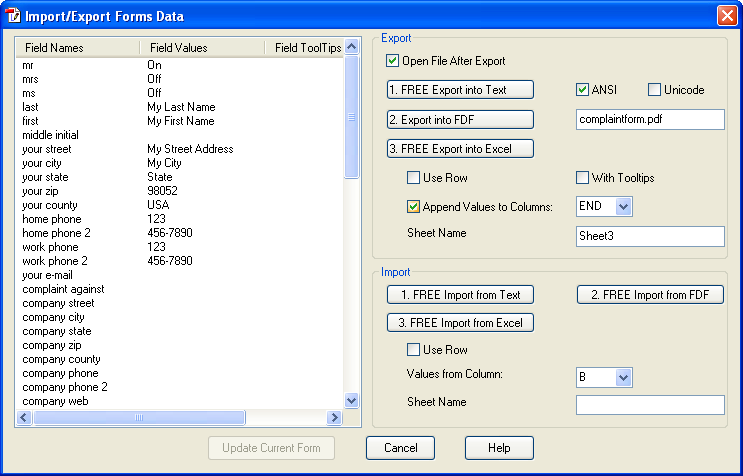
Export:
You can export the form data to a Tab-separated text file, Microsoft Excel File or FDF File. Exporting form data lets you save the existing data, which you can then send via email or the Internet. The exported file will be considerably smaller than the original PDF file.
Inside the exported text file, there is a table. In each row, there are only two columns. The left column is the form field name while the right column is the corresponding value. The name and value is separated by TAB in TXT/XLS format or by comma in CSA format. Each row is separated by a new line. When outputting, the new line char in a multiple-line text form field will be replaced by two chars \n . The single char \ will be replaced by \\ . Here is the example:
(Form Field Name) (Tab) (Form Field Value) (New Line Char)
First Name
Bill
Last Name
Gates
Address
Microsoft Corporation\n One Microsoft Way\n Redmond, WA 98052-6399
To export form data into a file:
Open the a PDF form by PDFill
Fill it out inside PDFill.
Choose File Menu > Import/Export Forms Data>Click Export into a Text File.
Specify a location and filename, and then click Save.
ANSI Format supports only ASCII chars while Unicode Format supports International chars. There are 3 types to select: Microsoft Excel Workbook (xls), Tab delimited Text (txt).
Import: (Please try Export function to get a Text or Excel file to see the file format before you use Import function)
You can import form data from a text file. Each row in the text file must be Tab delimited to create columns, as defined in the previous table.Usually, you can export into Excel file by PDFill first, and then edit the pairs of name and value inside Excel, then, save as Text (Tab delimited) or Unicode Text.
You can collect FDF by the client user submit. Use PDFill PDF Form Maker to add a Submit button. See Form Data Submit in detail.
To import form data from a file:
Open the a PDF form by PDFill.
Choose File Menu > Import/Export Forms Data>Click Import from a Text File.
Select a tab-delimited text file, and click Select. The new value will be listed in the table.
Click Update.
Note: If you import form data from a form that doesn't match the form you are importing into, only the form fields that match are updated, and those that don't match are ignored. Existing text in text form fields is replaced if you import data to those fields.
6. AutoFill List for PDF Form Fields

There are 4 ways to open this dialog:
From PDFill Options, Select PDF Form Tab. Click the Button "Edit the AutoFill List".
From Standard Toolbar, click AutoFill List
.
Select a text box to make it current, click Edit Menu => Inside Text Editor => Save/Select this Text into AutoFill List
Select a text box to make it current, right click Inside Text Editor => Save/Select this Text into AutoFill List
Show PDF Form Field's Name: As it is ON, Show each PDF Form Field name inside the field box.
Use AutoFill After Reading PDF Form: When a PDF document with interactive PDF Form is first read into PDFill, some PDF form fields will be filled automatically IF their names is exactly listed under the AutoFill Table of Names and Values.
Import from Current Filled PDF Form Fields: Please fill the form first, then all the PDF Form Field with non empty value will be copied into this dialog. Use Remove to remove the non-needed values.Update Current Entire PDF Form Fields: Some PDF form fields will be filled automatically IF their names is exactly listed under the AutoFill Table of Names and Values.
Add or Edit: Add a new List or Edit a selected List of Name and Value.
Move Up/Down: Change the order of the selected list's position.
Remove: Remove the selected entry of name and value.
Remove All: Remove all the entries of names and values.
7.
Batch (DOS) Command Support:
You can start a batch job in Windows by issuing the
execution command directly from the MS-DOS command prompt window without
opening the PDFill GUI.
(It is only available for the registered user of PDFill PDF Editor)
Export a PDF form into XLS with Options
"C:\Program Files\PlotSoft\PDFill\PDFill.exe" EXPORT Input.pdf Output.XLS -UseRow 1 -Append "12" -SheetName "Sheet2"
-UseRow 1: (Optional) Flag to Use Row: If set 1, all set of the form data is under one row. Default is 0 for the column.
-Append "AB": (Optional) With this Append Flag, the form data is appended to Column "AB" if -UseRow 0; -Append "12" if -UseRow 1. Default is "" and a new file will be created.
-SheetName "Sheet2": (Optional) The sheet name. Default is "", which is the first sheet.
- Example:
"C:\Program Files\PlotSoft\PDFill\PDFill.exe" EXPORT "D:\BatchTest\Input.pdf" "D:\BatchTest\output.xls"
"C:\Program Files\PlotSoft\PDFill\PDFill.exe" EXPORT "D:\BatchTest\Input.pdf" "D:\BatchTest\output.xls" -Append "AB"
"C:\Program Files\PlotSoft\PDFill\PDFill.exe" EXPORT "D:\BatchTest\Input.pdf" "D:\BatchTest\output.xls" -UseRow 1 -Append "12" -SheetName "Sheet2"Export a PDF form into FDF, TXT, or CSV
"C:\Program Files\PlotSoft\PDFill\PDFill.exe" EXPORT Input.pdf Output.FDF
"C:\Program Files\PlotSoft\PDFill\PDFill.exe" EXPORT Input.pdf Output.TXT (Tab-delimited Text File)
"C:\Program Files\PlotSoft\PDFill\PDFill.exe" EXPORT Input.pdf Output.CSV (Comma-delimited Text File)Import a Excel table into a PDF form (Before using Import, please use Export first to see the file format)
"C:\Program Files\PlotSoft\PDFill\PDFill.exe" IMPORT XLS AB Input.xls Input.pdf Output.pdf -SheetName "Sheet3" (from Column Name "AB" )
"C:\Program Files\PlotSoft\PDFill\PDFill.exe" IMPORT XLS 12 Input.xls Input.pdf Flatten Output.pdf -UseRow 1 -SheetName "Sheet2" (from Row Name "12" )Flatten: To Flatten the Output.pdf
-UseRow 1: (Optional) Flag to Use Row: If set 1, all set of the form data is under one row. Default is 0 for the column.
-SheetName "Sheet2": (Optional) the sheet name. Default is "", which is the first sheet.Import a tab-delimited text file into a PDF Form
"C:\Program Files\PlotSoft\PDFill\PDFill.exe" IMPORT TXT Input.txt Input.pdf Output.pdf
"C:\Program Files\PlotSoft\PDFill\PDFill.exe" IMPORT TXT Input.txt Input.pdf Flatten Output.pdf (to Flatten the Output.pdf)Import FDF into a PDF form
"C:\Program Files\PlotSoft\PDFill\PDFill.exe" IMPORT FDF Input.fdf Input.pdf Output.pdf
"C:\Program Files\PlotSoft\PDFill\PDFill.exe" IMPORT FDF Input.fdf Input.pdf Flatten Output.pdf (to Flatten the Output.pdf)Flatten a PDF form
"C:\Program Files\PlotSoft\PDFill\PDFill.exe" Flatten Input.pdf Output.pdfSee more command from here.
PDFill Copyright 2002-2022 by PlotSoft L.L.C.. All rights reserved.