|
PDFill
FREE PDF Writer
|
 |
|
Completely FREE PDF
Writer, PDF Printer, PDF Creator or PDF Converter.
It
is
installed as a "printer subsystem� to create highest quality
PDF that is distilled directly from Postscript using latest
version of
FREE GhostScript. With just a push of a button,
virtually any Windows applications (HTML, Microsoft?Word,
PowerPoint, Excel, AutoCad, and More) can be converted into
business quality PDF documents. The free
programmatic access is available for the advanced
user. A PDF Button inside Microsoft Word,
PowerPoint and Excel is added to save PDF in one click!
To get free
PDF, just print from your application into PDFill
PDF&Image Writer!
1.
PDF
Optimization
2.
PDF Description
3.
PDF Security
4.
PDF View Preference
5.
PDF Presentation
6.
PDF Page's
Rotate and Crop
7. Output
Options
8.
Install or Uninstall PDFill PDF&Image Writer
9.
Quick Start to Create PDF or Image files
10.
Frequent
Asked Question and Technical Support
|
|
1.
PDF Optimization:
Includes five PDF output Settings, each of which can be used to
produce PDF files at an optimized file size and quality
level, depending on how the PDF document will be used.

PDF
Output Settings:
The default value is Prepress.
-
Screen:
Produces a PDF optimized for screen viewing, which is
low-resolution output similar to the Acrobat Distiller
"Screen Optimized" setting. This configuration creates
small PDF files and reduces image resolution to 72 dpi.
Ebook: Produces a PDF optimized
for eBook usage, which is medium-resolution output similar to the Acrobat
Distiller "eBook" setting. This configuration
creates average-sized PDF files and compresses all images,
optimizing the file for downloading and viewing on a variety of screens.
Printer: Produces
a PDF optimized for printing to most home and office
printers, which is similar to the Acrobat Distiller
"Print Optimized" setting. This configuration creates high resolution PDF
files, but does not embed fonts.
Prepress:
Produces a PDF optimized for printing to
commercial-quality printers, which is similar to
Acrobat Distiller "Prepress Optimized" setting. This configuration creates large PDF files and
will automatically embed all fonts and high resolution images for best results when
printed on a system other than the one on which the PDF was generated.
Default: Produce
a PDF intended to be useful across a wide variety
of uses, possibly at the expense of a larger output file.
PDF Resolution (dpi): Sets the resolution
for pattern fills and for fonts that must be converted to bitmaps. The
default value is 300 dpi.
Max Inline Image Size (Bytes): Specifies
the maximum size of an inline image, in bytes. For images larger than
this size, GhostScript will create an XObject instead of embedding the image
into the context stream. The default value is 4000. It may be
advantageous to set a small value if the source document is expected to
contain multiple identical images, reducing the size of the generated
PDF.
Auto Rotate Pages: Controls the automatic orientation selection algorithm.
There are 3 options: None Page, All Pages and Page by Page; the default
is All Pages.
Process Color Model: Sets the color
space to be used for device-dependent colors in the PDF output.
There are 3 options: Device Gray, Device RGB, or Device CMYK;
the default value is Device RGB.
Compress
Embedded Fonts: Defines whether the
embedded fonts will be compressed in the output. The default value is true;
the false setting is intended only for debugging.
The following registry table
sets the properties of the generated PDF:
|
Under: HKEY_CURRENT_USER\Software\PlotSoft\Writer\PDF_Optimization |
|
USEOPTIMIZATION |
Integer |
This Flag must be set 1 to use the
Optimization options (0/1). |
|
Settings |
Integer |
Flag to use PDF Settings: 0 for Screen, 1
for Ebook, 2 for Printers, 3 for Prepress, 4 for Defaults. |
|
Resolution |
Integer |
PDF Resolution in dpi.
|
|
Max_Inline_Image |
Integer |
Max Inline Image Size
in Bytes |
|
Auto_Rotate_Page |
Integer |
Auto Rotate Pages: 0
for None, 1 for All and 2 for Page by Page |
|
Color_Model |
Integer |
Process Color Model: 0
for Device Gray, 1 for Device RGB and 2 for Device
CMYK |
|
CompressFont |
Integer |
Flag to Compress
Embedded Fonts |
|
|
2.
PDF Description:
Add the basic
information about the document, including title, author, subject, keywords,
created, creator, producer and PDF version information.

The following registry table
sets the properties of the generated PDF:
|
Under: HKEY_CURRENT_USER\Software\PlotSoft\Writer\PDF_Description |
|
USEDESCRIPT |
Integer |
This Flag must be set 1 to use the
Description options (0/1). |
|
TITLE |
String |
title |
|
AUTHER |
String |
author |
|
SUBJECT |
String |
subject |
|
KEYWORD |
String |
keywords |
|
CREATIONDATE |
String |
created |
|
CREATOR |
String |
creator |
|
PRODUCER |
String |
producer |
|
PDFVERSION |
String |
PDF version
information (1.2, 1.3, 1,4 or 1.5) |
|
|
3. PDF
Security:
Protect your PDF files with password in different encryption
level. Prevent PDF files from being printed, copied,
changed, extracted, signed, filled, assembled and/or
merged.

User Password is used to open the PDF document
Owner Password is used to change security settings
Encryption Level
Security Options:
-
Printing:
Allow to print
-
Modify Contents:
Allow to modify
-
Copy:
Allow to copy or extract
-
Modify Annotations:
Allow to add or modify annotations or form fields
-
Fill In:
Allow to input form field and signature (128-bit RC4
only)
-
Screen Readers:
Allow to enable accessibility (128-bit RC4 only)
-
Assembly:
Allow to modify document assembly (128-bit RC4 only)
-
Degraded Printing:
Allow to print degraded mode (128-bit RC4 only)
Note: To disable printing, you have to
uncheck both Printing and Degraded Printing.
The following registry table
sets the properties of the generated PDF:
|
Under: HKEY_CURRENT_USER\Software\PlotSoft\Writer\PDF_Security |
|
USESECURITY |
Integer |
This Flag must be set 1 to use the
SECURITY
options (0/1). |
|
USER_PASSWORD |
String |
User Password |
|
OWNER_PASSWORD |
String |
Owner Password |
|
BIT128 |
Integer |
Flag to use 128-bit RC4(0/1) |
|
PRINT |
Integer |
Flag to use Printing (0/1) |
|
MODIFY_CONTENT |
Integer |
Flag to use Modify Contents (0/1) |
|
COPY |
Integer |
Flag to use Copy (0/1) |
|
MODIFY_ANNOTATION |
Integer |
Flag to use Modify Annotations (0/1) |
|
FILL |
Integer |
Flag to use Fill In (0/1) |
|
SCREEN |
Integer |
Flag to use Screen Readers
(0/1) |
|
ASSEMBLY |
Integer |
Flag to use Assembly (0/1) |
|
DEGRADED_PRINT |
Integer |
Flag to use Degraded Printing
(0/1) |
|
|
4. PDF
View Preference:
Set the view options when the PDF is open.

-
Opening Page Layout: The
page layout to be used when the document is opened (choose
one).
-
SinglePage - Display one page at a time.
-
OneColumn - Display the pages in one column.
-
TwoColumnLeft - Display the pages in two columns,
with odd numbered pages on the left.
-
TwoColumnRight - Display the pages in two
columns, with odd numbered pages on the right.
-
Open Page Display Mode: The
page mode how the document should be displayed when opened
(choose one).
-
UseNone - Neither document outline nor thumbnail
images visible.
-
UseOutlines - Document outline visible.
-
UseThumbs - Thumbnail images visible.
-
FullScreen - Full-screen mode, with no menu bar,
window controls, or any other window visible.
-
HideToolbar - hide the viewer application's tool bars
when the document is active.
-
HideMenubar - hide the viewer application's menu bar
when the document is active.
-
HideWindowUI - hide user interface elements in the
document's window (such as scroll bars and navigation
controls), leaving only the document's contents displayed.
-
FitWindow - resize the document's window to fit the
size of the first displayed page.
-
CenterWindow - position the document's window in the
center of the screen.
-
Exit Full-Screen Mode: The
document's page mode, specifying how to display the
document on exiting full-screen mode. It is meaningful
only if the page mode is FullScreen (choose one).
-
UseNone - Neither document outline nor thumbnail
images visible
-
Outlines - Document outline visible
-
UseThumbs - Thumbnail images visible
The following registry table
sets the properties of the generated PDF:
|
Under: HKEY_CURRENT_USER\Software\PlotSoft\Writer\PDF_View |
|
USEVIEW |
Integer |
This Flag must be set 1 to use the view
options (0/1). |
|
LAYOUT |
Integer |
Flag to Open Page Layout
(0/1/2/3) |
|
DISPLAY |
Integer |
Flag to Open Page
Display Mode
(0/1/2/3) |
|
HIDETOOLBAR |
Integer |
Flag to
HideToolbar (0/1) |
|
HIDEMENUBAR |
Integer |
Flag to
HideMenubar (0/1) |
|
HIDEWINDOWUI |
Integer |
Flag to
HideWindowUI (0/1) |
|
FITWINDOW |
Integer |
Flag to
FitWindow (0/1) |
|
CENTERWINDOW |
Integer |
Flag to
CenterWindow (0/1) |
|
EXITFULL |
Integer |
Flag to
Exit Full-Screen Mode (0/1/2) |
|
|
5. PDF Presentation: Set Page
display duration, type and duration of the transition effect
when displaying a PDF document as a �presentation� or �slide
show.�

-
Each
Page's Display Duration (second)
- Specifies the advance timing of the page when a
presentation is being played in a non-interactive mode. It
describes the maximum amount of time the page is displayed
before the viewer automatically turns to the next page; the
user can advance the page manually before the time is up.
-
Type of the Transition Effect -
Specifies the implementations of presentation modes: Horizontal Blinds,
Vertical Blinds, Bottom-Top Wipe, Diagonal Glitter, Dissolve, Inward
Box, Left-Right Glitter, Left-Right Wipe, Outward Box, Right-Left Wipe,
Horizontal Split, Out Horizontal Split, In Vertical Split, Out Vertical
Split, Top-Bottom Glitter, Top-Bottom Wipe.
-
Duration of the Transition
Effect (Second)
- Specifies the time of transition.
The following registry table sets the
properties of the generated PDF:
|
Under: HKEY_CURRENT_USER\Software\PlotSoft\Writer\PDF_Presentation |
|
USEPRESENT |
Integer |
This Flag must be set 1 to use the
Presentation options (0/1). |
|
DISPLAYTIME |
Integer |
Each Page's Display
Duration (second) |
|
TRANS_TYPE |
Integer |
Type of the Transition Effect |
|
TRANS_TIME |
Integer |
Duration of the Transition
Effect (Second)
|
|
|
6.
PDF Page's
Rotate and Crop: Page Rotation by 90/180/270? crop box
with margins...

If all 0, there will be no page rotation
or crop.
The following registry table
sets the properties of the generated PDF:
|
Under: HKEY_CURRENT_USER\Software\PlotSoft\Writer\PDF_ROTATECROP |
|
USEROTATECROP |
Integer |
This Flag must be set 1 to use the
Rotation and Crop Options (0/1). |
|
Rotate_Degree
|
Integer |
Page Rotation in degree
(0/90/180/270) |
|
Crop_Left |
String |
Left Margin of Crop Box in points.
"12.50" |
|
Crop_Right |
String |
Right Margin of Crop Box in points.
"0.00" |
|
Crop_Bottom |
String |
Bottom Margin of Crop Box in points.
|
|
Crop_Top |
String |
Top Margin of Crop Box in points.
|
|
|
7. Output
Options: Use default folder or name, view file
after saving...
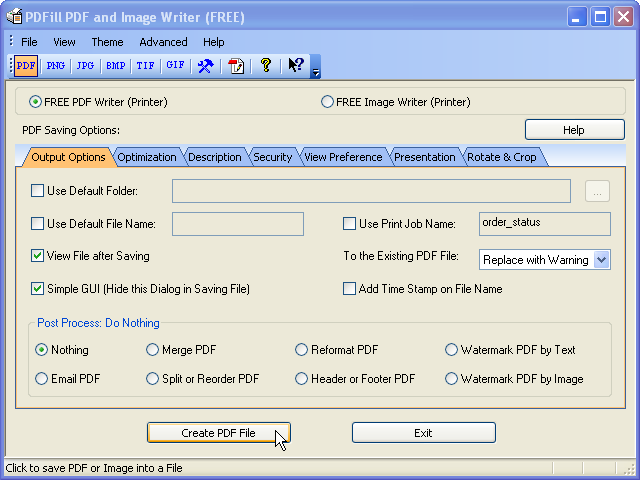
Post Process options
allow you to specify an action to take once the PDF
creation process is complete after "Create PDF File" is clicked.
- Do Nothing: If selected,
the created PDF will be saved to disk and no further
action will be taken.
- Email PDF: If selected,
the created PDF will be saved to disk, and a copy attached
to a blank email message using your
default email editor.
- Merge PDF: If
selected, the created PDF will be saved to disk and then
sent to the
Free PDFill
PDF Tools: Merge to merge with other PDFs.
- Split or Reorder
PDF: If selected, the created PDF will be saved to
disk and then sent to the
Free PDFill PDF Tools:
Split or Reorder so that the PDF Pages will be
split or reordered.
- Reformat PDF: If
selected, the created PDF will be saved to disk and then
sent to the
Free PDFill
PDF Tools: Reformat so that the multiple PDF Pages will be
reformatted into one page.
- Header or Footer
PDF: If selected, the created PDF will be saved to
disk and then sent to the
Free PDFill PDF Tools:
Heater and Footer so that the
information, such as date, time, page numbers, or the
title of the document will be added in the top or bottom
margins of each PDF Page.
- Watermark PDF by
Text: If selected, the created PDF will be saved to
disk and then sent to the
Free PDFill PDF Tools:
Watermark by Text so that the stylized
text stamp will be added onto each PDF Page.
- Watermark PDF by
Image: If selected, the created PDF will be saved to
disk and then sent to the
Free PDFill PDF
Tools: Watermark by Image so that the image
stamp will be added onto each PDF Page.
The following registry table
sets the properties of the generated PDF File:
|
Under: HKEY_CURRENT_USER\Software\PlotSoft\Writer\OutputOption |
|
LASTPDFORIMAGE |
Integer |
Flag to use PDF Writer (0) |
|
USE_DEFAULT_FOLDER |
Integer |
Flag to Use default Folder Location (0/1) |
|
DEFAULT_FOLDER_PATH |
String |
Path name for the default Folder |
|
USE_DEFAULT_FILENAME |
Integer |
Flag to Use Default File Name (0/1) |
|
DEFAULT_FILENAME |
String |
File Name for the default PDF file |
|
USE_PRINT_JOBNAME |
Integer |
Flag to Use Print Job Name (0/1) |
|
VIEW_FILE |
Integer |
View File after saving (0/1) |
|
HIDE_DIALOG |
Integer |
Hide this option dialog in saving File (0/1) |
|
TIME_STAMP |
Integer |
Flag to use time stamp
on the file name (0/1) |
Notes:
-
To save a PDF, Set LASTPDFORIMAGE
to 0.
-
To hide the "Save
As" Dialog,
USE_DEFAULT_FOLDER must be 1 with valid DEFAULT_FOLDER_PATH; USE_DEFAULT_FILENAME
must be 1 with valid DEFAULT_FILENAME or
USE_PRINT_JOBNAME
must be 1.
-
To hide this dialog, HIDE_DIALOG
must be 1.
|
|
