and Example PDFill Project File
  )
)PDFill | Overview | First | Previous | Next | Last
PDFill PDF Filler: Check Box Tool
(See Example
PDF
and Example PDFill Project File )
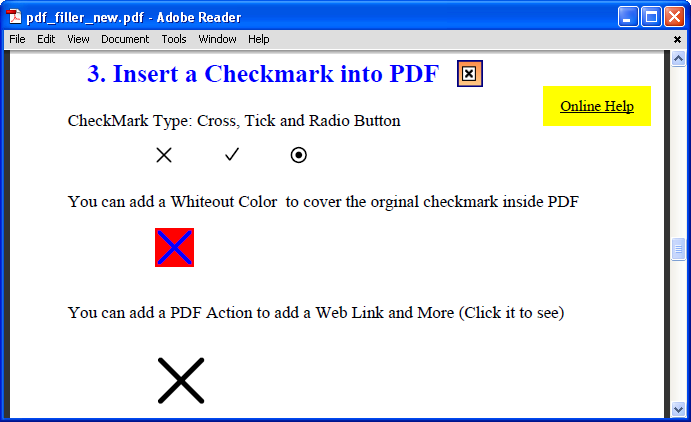
You can use this tool to type a checkmark (Cross, Tick, radio or Dot) into PDF document anywhere just like a PDF Typewriter. You can set Center Position, Shape, Size, Color, Transparency, PDF Action, Whiteout and more.
1. Steps on how to create a Check Box onto PDF Page:

or Select Check Box
 from Forms or Main Tool Bar;
2. Access the properties:
 first.

3. Set the properties:
Here is the list of the properties.
Center Position
The central X and Y coordinate to define the position of the box
Shape
The shape of the check: Check, Tick, Radio and Dot.
Size
The size of the box
Color The color of the check box. Whiteout (Fill Color) The background color of the field, If set, it will be opaque. It can used to cover the original text and add a new text. Action: Add Link, Submit, JavaScript and more ... See PDF Actions Transparency The transparency of the check PDF Layer Select a PDF Layer name if it belongs to a PDF Layer. Make it empty if it doesn't belong to a PDF Layer. See details in PDF Layer.
Blend Mode Color Blend Mode for Check. Please save into a new PDF to see the blending effect. Order It will show on the Foreground or Background of the PDF document
Set this field as default
If set, the new object will have the same properties as this one.
4. Screenshot:
PDFill Copyright 2002-2022 by PlotSoft L.L.C.. All rights reserved.